The BitGo KeyCard is what you use to restore a BitGo wallet, so understanding it is the first step to getting your coins back. Unlike most wallets, BitGo never gave you a 12 or 24 word seed phrase. Instead, everything needed to recover your funds sits on a single PDF, the BitGo KeyCard, that you were prompted to download when you created the wallet. This guide explains what your KeyCard contains, how to use it with BitGo's Wallet Recovery Wizard to restore your wallet and how to troubleshoot common issues during the recovery or when the Recovery Wizard is not working correctly.
What Is the BitGo Keycard?
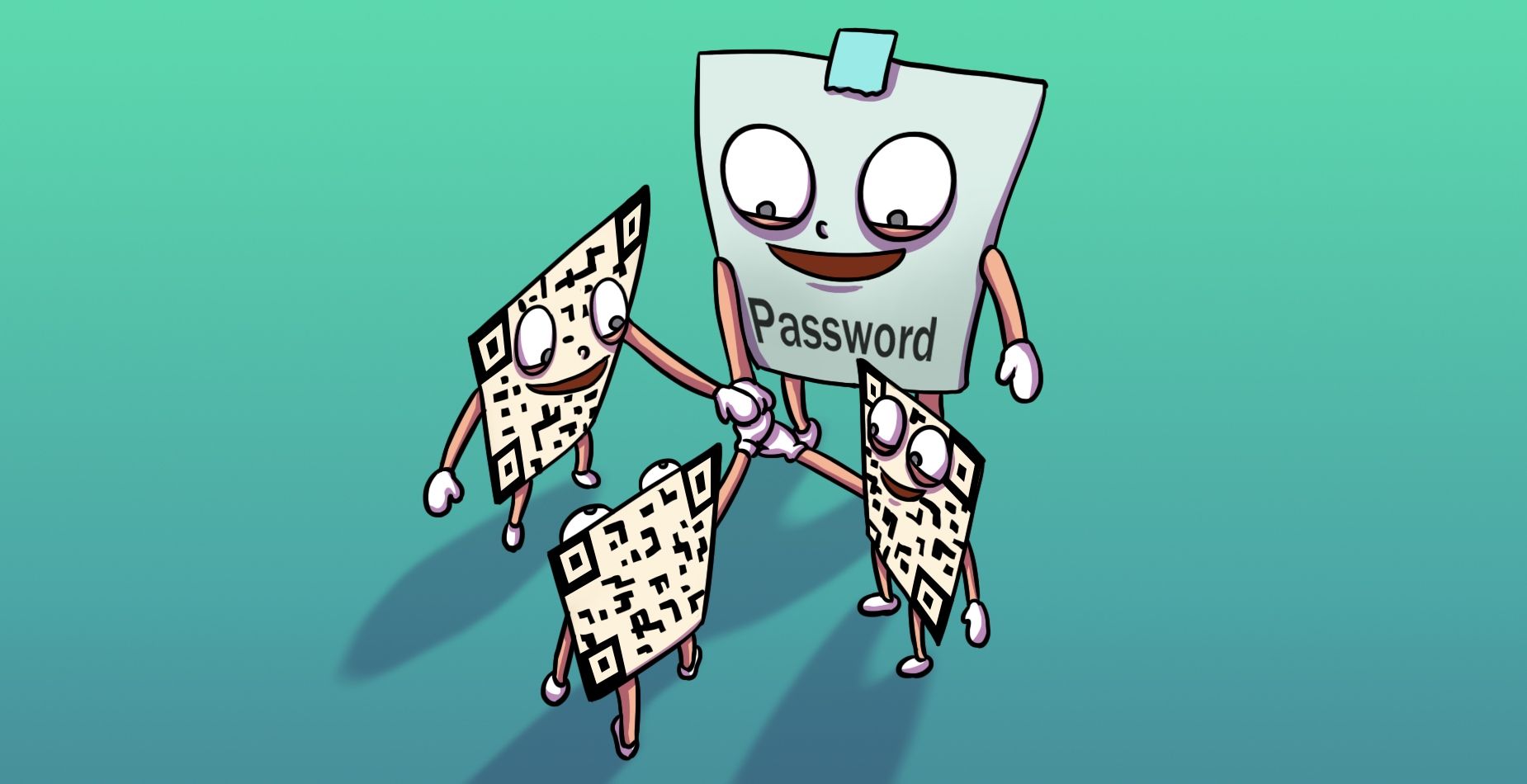
The BitGo Keycard is an essential element for preserving a backup and restoring the BitGo wallet. It should be securely saved—either digitally or as a printed copy—when creating the wallet, and contains four different secrets that should be stored offline, three of which are keys:
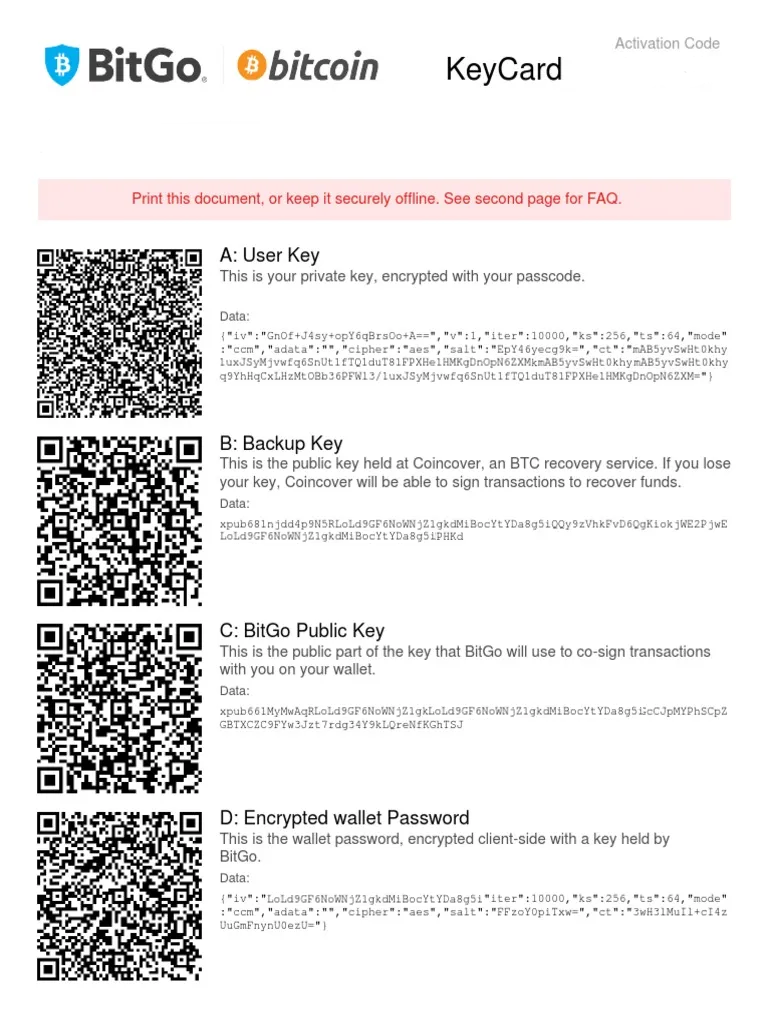
- User Key: This is the user’s private key encrypted with a password chosen by the user.
- Backup Key: The Backup Key is typically found directly on the keycard itself, making it easily accessible for recovery. It can also be stored by partner companies like Keyternal or Coincave who can assist with recovery using the information on the keycard.
- BitGo Public Key: This is the public part of BitGo's co-signing key. BitGo holds the corresponding private key on their infrastructure. For some assets, Box C is not the BitGo public key but a base address or wallet-contract address. Ethereum and ERC-20 tokens, for example, use the wallet-contract address, so check which value your coin needs.
- Encrypted Wallet Password: This is the encrypted password for your BitGo wallet.
For each of the four secrets there is a QR code that can be read. It is possible to restore a wallet using the keycard without needing the help of BitGo.
How to restore your BitGo Wallet via Wallet Recovery Wizard
One honest note before you start: The Wallet Recovery Wizard can still work for some wallets, but most people find it fails in practice and BitGo's own documentation points to why: the tool makes a separate request for every address in your wallet and can hit rate limits and it relies on third-party block explorers that BitGo does not control. It is still worth trying if you have your full KeyCard, so the steps are below. If it does not work for you, that is common and does not mean your funds are lost.
When following the steps below, ReWallet and BitGo recommend running the Wallet Recovery Wizard on an air-gapped machine, a computer with no internet connection, so the risk of exposing your keys online is minimized. Also, only perform live recoveries on trusted computers. If you are unsure of what you are doing, we recommend reaching out for assistance.
In order to perform the recovery, you will need to download the BitGo Wallet Recovery Wizard from GitHub. Once installed, you go through the following steps:
- Select “Mainnet” as the environment
- Select the menu item “Non-BitGo Recovery”
- Select the Cryptocurrency to be recovered
- Select the Key Recovery Service listed on your BitGo Keycard; otherwise choose “None”
- Enter the User Key in Box A
- Enter the Backup Key in Box B
- Enter the BitGo Public Key in Box C
- Enter your unencrypted wallet passphrase
- Paste the receiving address for your Bitcoin
- Press “Recover Funds”
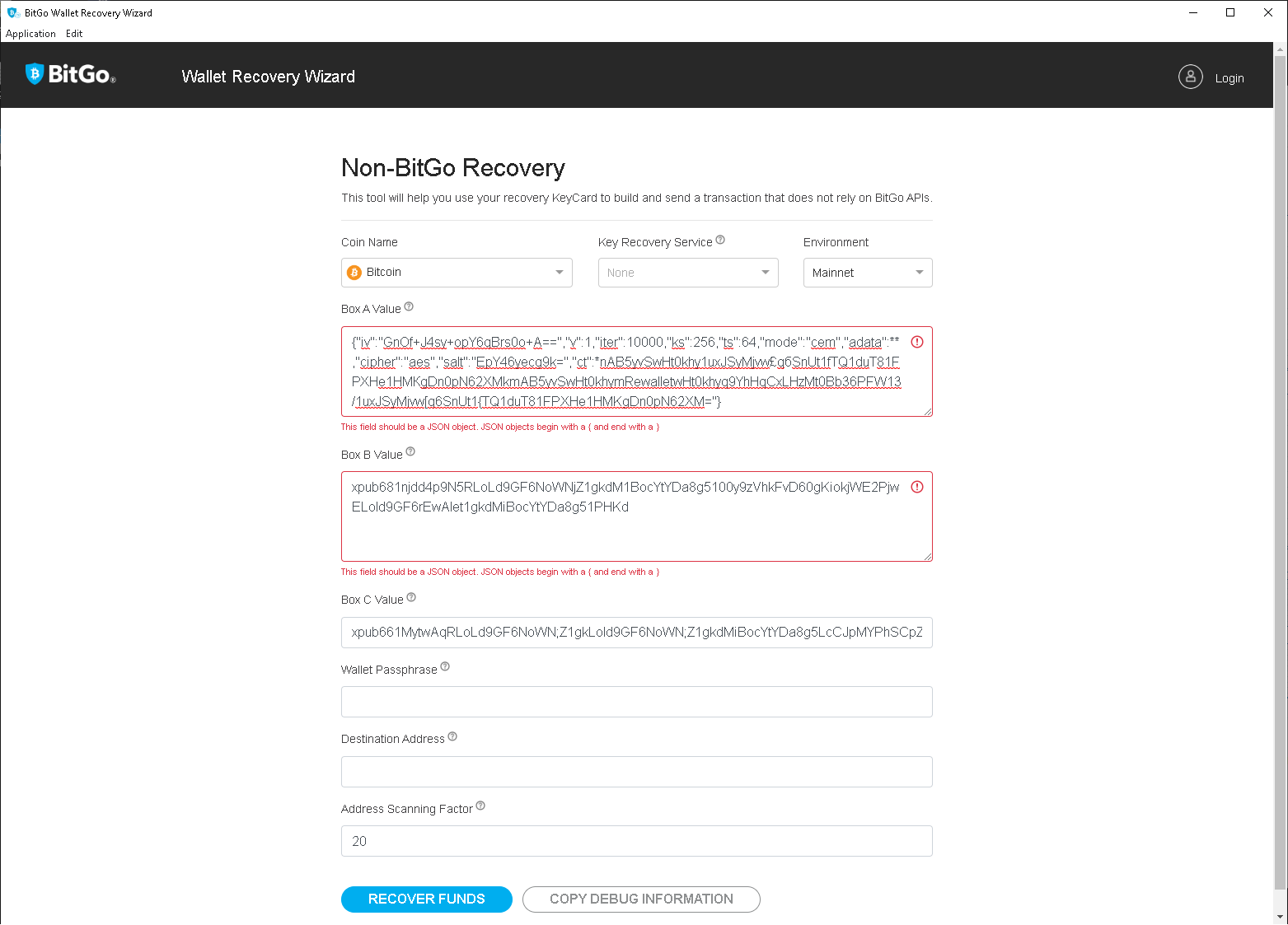
Once you have pasted your keys into Boxes A, B and C, do not be alarmed if a red warning appears under Box A or Box B reading "This field should be a JSON object. JSON objects begin with a { and end with a }." The Wizard runs a strict format check on these fields and often flags the values copied straight from your KeyCard even when they are entered correctly. In our experience these particular warnings can usually be ignored. The screenshot below shows the Non-BitGo Recovery screen with example values in place, including those warnings:
The software will create a JSON file, which includes a “transaction hex”. This string must be copied and sent to the network via a block explorer to trigger the transaction.
If the Wizard errors during any of these steps, or the transaction will not broadcast through a block explorer, you are not alone. This is the point where most recoveries now stall. See the troubleshooting below or get help with BitGo wallet recovery.
Troubleshooting Common BitGo Keycard Recovery Issues
Recovering your BitGo wallet can be a complex process, especially if you've encountered specific challenges along the way. In this section, we’ll cover common issues users face during recovery and provide guidance for resolving them. Whether you’ve misplaced essential documents or encountered errors with the BitGo Wallet Recovery Wizard, these troubleshooting tips aim to support a smoother recovery experience.
Lost BitGo Keycard Password
The password associated with your BitGo Keycard is essential for decrypting the information on the keycard and recovering your wallet. If you are seeing: “Failed to decrypt user key with passcode - try again!” or “Error invoking remote method 'recover': Error: Failed to decrypt user key with passcode - try again!” the provided password is wrong.
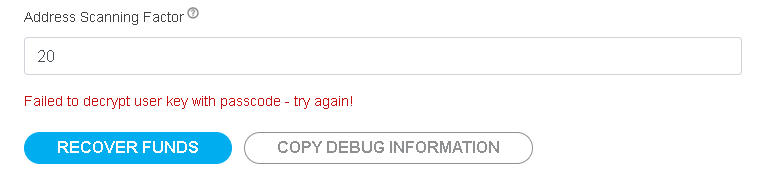
It's important to note that the password can contain any UTF-8 character, meaning it may include letters, numbers, symbols and even non-standard characters. If you've lost or forgotten your password, consider trying the following to recall it:
- Think of Previous Passwords: Try any passwords you have used in the past, especially those around the time you created the BitGo wallet.
- Consider Variations: Think about common variations you might have used, such as replacing letters with numbers (e.g., "P@ssw0rd" instead of "Password") or adding special characters.
- Check for Typos: You might have mistyped the password when setting it. Try variations with common typos or keyboard layout changes.
- Reflect on Password Patterns: Consider if you used a pattern or a passphrase that holds personal significance.
If you still cannot remember it, it may be time to seek professional help. ReWallets BitGo wallet recovery service can attempt to reconstruct a forgotten password from whatever you still remember.
Lost BitGo Keycard PDF
The PDF of your BitGo Keycard is an important document as it stores encrypted keys and other critical information for wallet recovery. Here are steps you can try to retrieve the lost PDF:
- Search Backups and Storage Locations: Check all your common backup locations, such as external hard drives, flash drives, cloud storage or even email attachments, where you might have saved a copy of the PDF.
- Look for Paper Printouts: If you ever printed the PDF for offline storage, look in any physical storage locations where you may keep important documents.
- Check with Any Collaborators: If you set up the wallet with a team or shared the PDF for safekeeping, check with them to see if they still have access.
If you cannot locate the PDF, consider a professional BitGo wallet recovery. Bear in mind that BitGo no longer supports personal wallets and will not perform a recovery, so a specialist is usually the only route left.
BitGo Wallet Recovery Wizard Fails
The Wallet Recovery Wizard is the only official self-serve tool for a BitGo wallet and while it works for some, many recoveries fail for reasons built into the tool rather than caused by user error. Some failures do come down to a fixable input mistake, so rule those out first. Here are the common causes and troubleshooting steps:
- Double-Check Inputs: Ensure that you’ve entered all the keys (User Key, Backup Key, BitGo Public Key) and the receiving address accurately. Even a small error in any of these inputs can cause the recovery to fail.
- Update to the Latest Version: Download the latest version of the BitGo Wallet Recovery Wizard from the official BitGo GitHub repository. Older versions may have bugs or be incompatible with recent updates.
- Verify JSON File Integrity: If the Wizard creates a JSON file but fails during the transaction, check that the “transaction hex” is correctly copied and that it hasn’t been altered.
- Internet and Firewall Settings: Ensure your internet connection is stable, and check that firewalls or antivirus software are not blocking the Wizard's address scanning processes.
- Too many addresses: the Wizard makes a separate request for every address your wallet has ever used and on wallets with a large address history this can hit a rate limit and stop the sweep before it finishes.
- Block explorer limits: the Wizard relies on third-party block explorers to read your balance and broadcast the transaction, and BitGo does not control their limits, so if one is rate-limited or down the recovery can stall.
- Select the correct Key Recovery Service: depending on your KeyCard, choose the right option from None, Coincover, BitGo KRS or Keyternal.
- Check your destination address: the address you send the recovered funds to must be valid, so confirm it is correct and that its format matches the coin you are recovering.
- Select the right environment: choose Mainnet or Testnet to match the wallet you are recovering. Almost all real recoveries use Mainnet.
If these steps do not resolve it, that is the norm rather than the exception with the current Wizard. BitGo's support will not recover the wallet for you, so the realistic next step is a professional BitGo wallet recovery, which we run on optimized, air-gapped systems on a success-based basis.
Common Wallet Recovery Wizard error messages
If the Wizard stops with an error, the message usually tells you what went wrong. Here are the ones we see most often and what they mean:
- "apiKey is a required field": the Wizard needs an API key for the block explorer it uses for this coin, and the field was left blank.
- "this KRS provider has not configured their fee structure yet - recovery cannot be completed": you selected a Key Recovery Service that is not set up to process recoveries.
- "No input to recover - aborting!": the Wizard scanned your addresses and found nothing to sweep. Usually the keys or coins are slightly off so it is checking the wrong addresses, the funds sit beyond the Address Scanning Factor, or the wallet is genuinely empty.
- "Failed to decrypt user key with passcode - try again!": the passphrase you entered did not unlock the User Key in Box A. This is almost always a wrong or mistyped passphrase, so watch for capitalization and keyboard layout. If you cannot recall the exact passphrase, this becomes a forgotten-password case.
- "error in API request ... Payment Required": the block explorer returned a 402, meaning the free quota is used up.
- "no krsProvider name": a Key Recovery Service name is required but none was selected.
- "invalid recoveryDestination": the address you entered to receive the funds is not valid for the selected coin. Check for typos and make sure the address format matches the coin you are recovering.
- "error in API request ... Too Many Requests": the block explorer rate-limited the Wizard. This is common on wallets with many addresses.
I Can’t Manage to Restore My BitGo Wallet – What Can I Do?
As long as the information on your KeyCard is complete, a recovery is often still possible, even though the Wizard now fails for most people. If your KeyCard is incomplete, your password is only partly remembered, or the software will not cooperate, recovery may still be possible with the right tools. Facing problems during the recovery? Our BitGo wallet recovery service is here to help. Send us a short summary through the contact form and we will assess it for free. We cannot promise that every wallet can be recovered, but we have a strong track record with BitGo KeyCard cases, and you only pay if we succeed.