

Armory was one of the most security-focused Bitcoin wallets of its time. Many of the people who used it between 2012 and 2017 still hold Bitcoin in an Armory wallet today, often on an old hard drive, in a printed paper backup or in a folder they haven't opened in years. The good news: your BTC isn't stored in Armory. It sits on the Bitcoin blockchain and Armory only holds the keys. As long as you still have a backup, the funds can usually be recovered.
This guide covers the main ways to restore an Armory wallet, how to get your Bitcoin out without downloading the entire blockchain and what to do when the passphrase, a backup or the wallet file is missing. The Interface and methods described below are based on Armory version 0.96.5.
Armory in 2026: What You Need to Know First
Armory is still in development and actively maintained as open source by the developer goatpig. However, the last stable version is Armory 0.96.5, released in December 2018. An Armory Pre-release version 0.97 also exists and introduces a new wallet and database format.
Due to Armory's unique features, there are two things that make old Armory wallets harder to recover than modern wallets:
- Armory needs a fully synced, unpruned Bitcoin Core node: It doesn't use public servers like Electrum or mobile wallets. To see your balance and send Bitcoin the usual way, you additionally need Bitcoin Core and a download of the entire blockchain (several hundred GB, often days of syncing). Advanced users can run Armory’s database (ArmoryDB) and Bitcoin Core on a separate machine, but a full node is required either way.
- Armory uses its own backup format: An Armory root key is not a BIP39 seed phrase. You can't directly import it into any BIP39 compliant wallet such as Electrum or Sparrow. To turn an Armory backup into usable private keys, you first need Armory itself.
The way around the first problem is Armory's offline mode, covered below. For the second there is unfortunately no quick workaround.
What You Have and How to Recover Your Armory Wallet
| What you still have | Your route to your Bitcoin |
|---|---|
| Paper backup (root key) | Restore via "Single-Sheet Backup" |
| Paper backup with SecurePrint | Restore via "Single-Sheet Backup" and enter the SecurePrint code |
| Enough fragments of a fragmented backup | Restore via "Fragmented Backup" |
| Wallet file (.wallet) or digital backup + passphrase | Import the file, then export keys or send |
| Wallet file, passphrase forgotten | Paper backup if available; otherwise passphrase recovery for the wallet file |
| A watching-only wallet file | Only displays your balance in Armory, but you can't spend it. You need a full backup |
| Lockbox (multisig) | Restore the participating wallets and import the lockbox |
| Nothing of the above or missing information | Professional assessment, see the end of this guide |
Before you start, make a copy of every wallet file, image or paper backup. Work only with copies. Never enter your root key, SecurePrint code or passphrase on any website or share them with anyone who contacts you.
Step 1: Install Armory Safely and Use Offline Mode
Download Armory 0.96.5 only from the official sources: btcarmory.com or the GitHub repository of goatpig/BitcoinArmory.
Verify the download signature before installing, following the official verification guide.
Start Armory in offline mode. On Windows, use the "Armory (Offline)" shortcut. On every system, you can also start Armory with the option --offline.
In offline mode, Armory doesn't need Bitcoin Core or a connected node. You can still restore wallets from backups, check the wallet ID and export your private keys. Your balance will show as zero offline. That is expected and doesn't mean your BTC is gone or that the wallet is damaged. For your safety: The --offline option does not disconnect your computer from the internet. For offline key handling, disconnect the device itself.
Step 2: Find Your Armory Backup
Armory offered several ways to back up a wallet. What you have decides how you restore it in step 3, so first locate your backup.
Armory Wallet File
Armory stores wallet files in its data folder:
- Windows:
%APPDATA%\Armory(for exampleC:\Users\YourName\AppData\Roaming\Armory) - macOS:
~/Library/Application Support/Armory - Linux:
~/.armory
Wallet files are named armory_<WalletID>_.wallet, for example armory_2dRkxw76K_.wallet. The file holds all private keys of the wallet. If you set a passphrase when you created the wallet, the keys are encrypted and you need that passphrase to decrypt the file. Armory also keeps a second copy named armory_<WalletID>_backup.wallet in the same folder. If the main file is damaged, try that one.
Paper backup
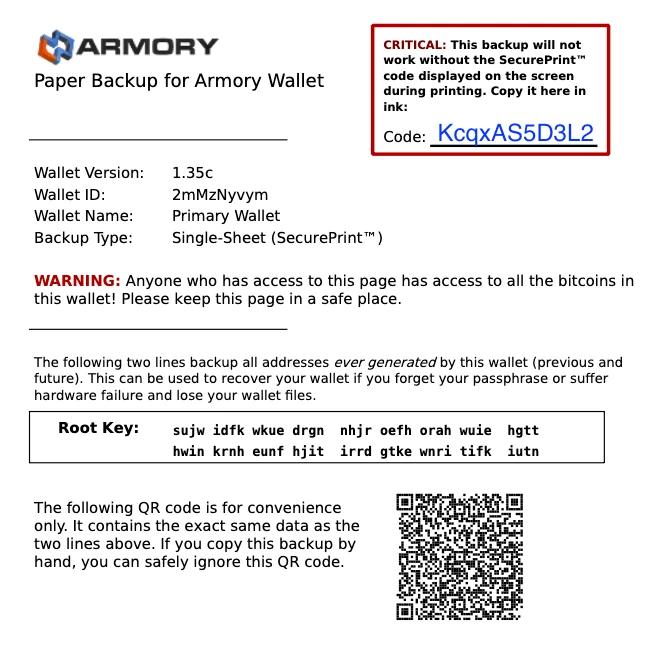
A printed sheet showing your wallet ID and a "Root Key": two rows of letter groups such as asdf ghjk wert …. Wallets created with older Armory versions also have two "Chain Code" rows and you need those too. The backup may also be protected with a SecurePrint code.
A standard paper backup restores the wallet’s deterministically generated keys, including addresses generated after the backup. It does not restore separately imported private keys unless those were also backed up.
SecurePrint paper backup
A paper backup that Armory encrypted with a SecurePrint code. The code was only shown on screen and you had to write it down by hand after printing your paper backup.
Fragmented backup
Your backup is split into several sheets or files (fragments). Each is labeled with the wallet ID, its fragment number and a ratio such as "2-of-3". You need at least the first number of fragments (two in a 2-of-3 backup) to restore the wallet. Fragments can also be SecurePrint-protected.
Exported private keys
Some users exported individual keys as a text file or printout (via "Export Key Lists"). Individual private keys do not require Armory to access the funds. However, each key is an individual backup so it may lack keys and addresses generated after the private key export.
Not a Backup: Watching-Only Files
Armory can create a watching-only copy of a wallet, typically identified by .watchonly or _WatchOnly in the filename, depending on the version and export method. This copy contains no private keys. It lets you view and generate receiving addresses and when synchronized with the blockchain, check balances and transaction history, but it cannot sign transactions.
Can't find anything?
Check old laptops, external drives, USB sticks, cloud storage and old emails for files ending in .wallet and look through folders and printed sheets. If your wallet file was deleted, stop using that drive or device right away. Data recovery may still be possible but every new bit written to the drive can decrease the chances for success.
Armory file backups use a .wallet file extension but .wallet files are generally not exclusive to Armory. Wallets such as MultiBit Classic, MultiBit HD, MultiDoge and other bitcoinj apps can also use the .wallet extension. If your file causes problems, check that it really is an Armory wallet file.
Step 3: Restore Your Armory Wallet
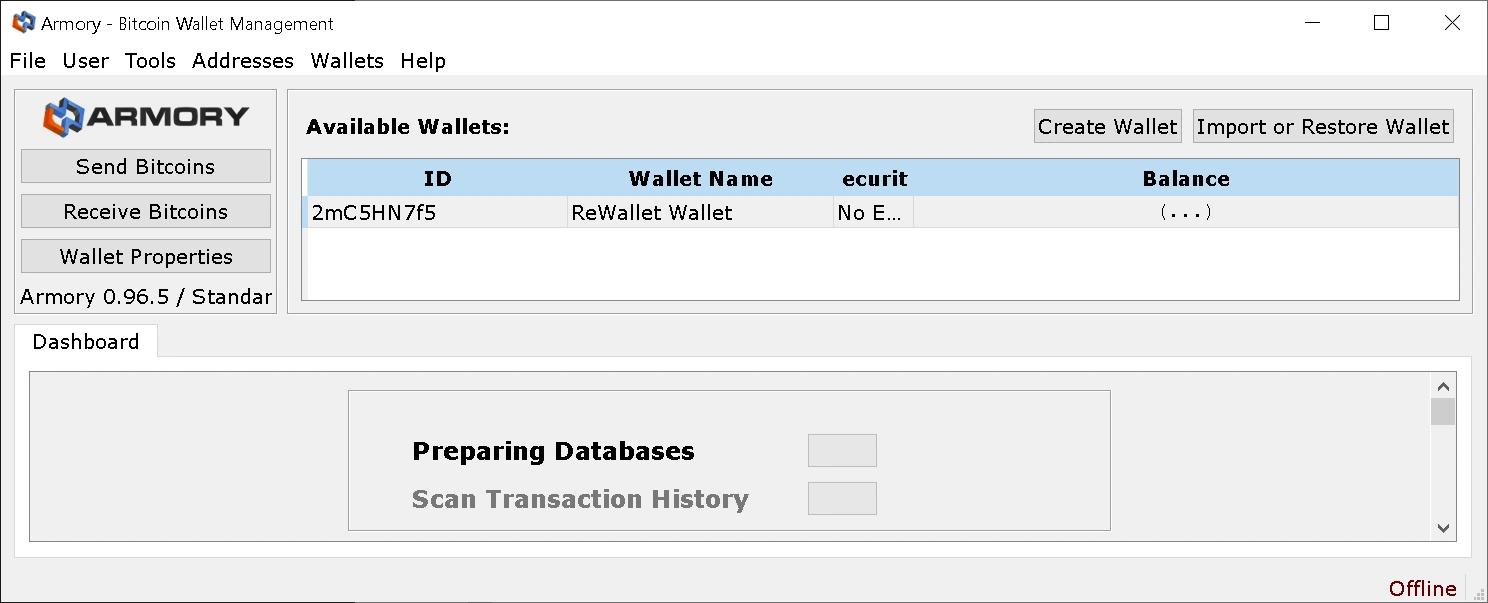
All restore options start the same way: open Armory and click "Import or Restore Wallet".
Restore From a Digital Backup or Wallet File
A digital backup is a copy of your wallet file. A direct copy of an encrypted wallet file retains its encryption. Armory also allows explicitly creating an unencrypted digital backup, so the passphrase requirement depends on the backup you have.
- Open Armory and click "Import or Restore Wallet".
- Choose "Import Digital Backup" and select your
.walletfile. - Click "Import Wallet". Your wallet appears in "Available Wallets" with its name and ID.
You don't need the passphrase to import the file, but you do need it to send Bitcoin or export the private keys.
Restore From a Paper Backup (Root Key)
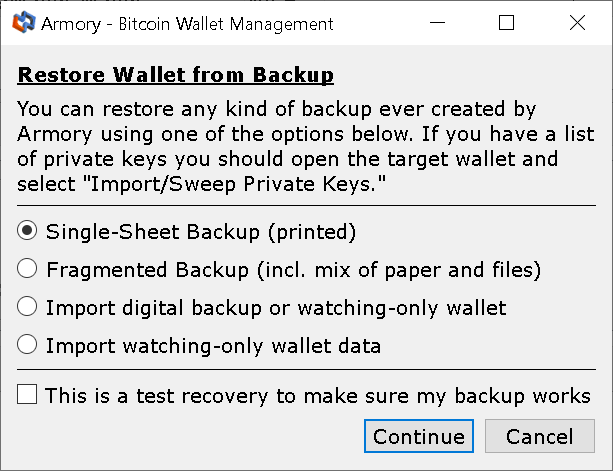
Armory's paper backup ("single-sheet backup") contains your wallet's root key, printed as lines of letter groups, plus a QR code. Please be aware that a paper backup can only regenerate keys native to Armory. This means any external private key that was manually imported is not backed up by a paper backup regardless of version and SecurePrint.
-
Open Armory and click "Import or Restore Wallet".
-
Select "Single-Sheet Backup".
-
Choose the backup version that matches your paper. Armory 0.96.5 offers:
- Version 1.35: 4 recovery lines.
- Version 1.35a: 4 recovery lines, unencrypted.
- Version 1.35a: 4 recovery lines + SecurePrint™.
- Version 1.35c: 2 recovery lines, unencrypted.
- Version 1.35c: 2 recovery lines + SecurePrint™.
Armory’s older single-sheet paper-backup formats (1.35 and 1.35a) include both a Root Key and a Chain Code. Format 1.35c includes only the Root Key, because the Chain Code can be derived from it. Choose "Unencrypted" only if the backup was not protected with SecurePrint.
-
Type in the lines exactly as printed.
-
Click "Restore Wallet".
-
Compare the wallet ID Armory displays with the one printed on your backup. If they match, your restore is correct.
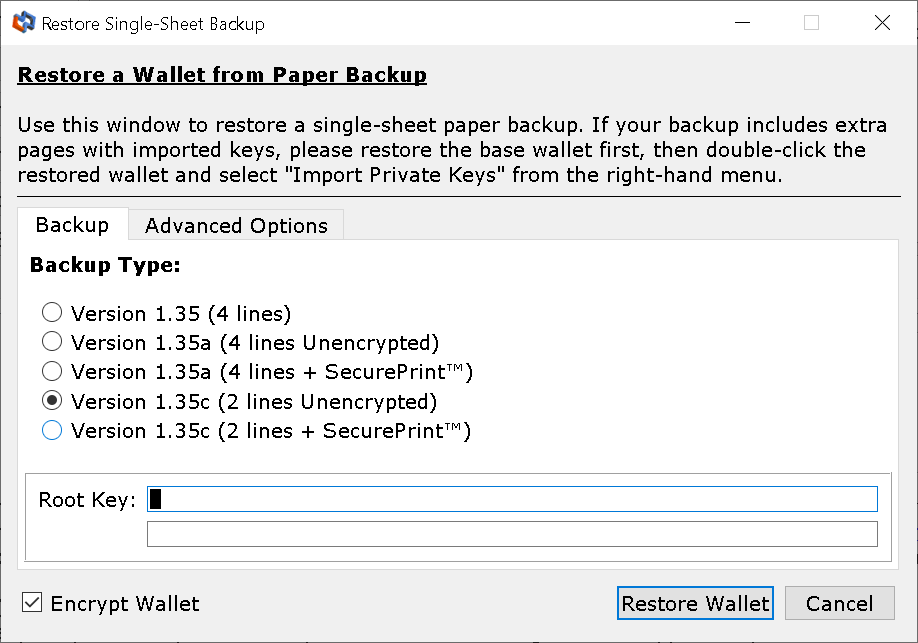
Each printed Root Key line includes its own checksum. During restoration, Armory attempts to correct errors such as a single mistyped character automatically. If it corrects the recovery data, it warns you to double-check the unique Wallet ID against your backup, because the correction may be wrong. In that case Armory will also display a warning: “Armory attempted to fix the errors but it is not always right.”
Restore From a Paper Backup With SecurePrint
SecurePrint encrypts your paper backup’s secret recovery data before sending it to the printer, helping protect it if the printer or print system retains or leaks a copy. Armory generates a SecurePrint code and displays it on screen without including it in the printed backup. You must record it manually. To restore the wallet from a SecurePrint-protected backup, you need both the backup and the correct SecurePrint code.
- Open Armory and click "Import or Restore Wallet".
- Select "Single-Sheet Backup".
- Choose the version marked "+ SecurePrint™" that matches your sheet (1.35a for older wallets, 1.35c for newer ones).
- Enter all recovery lines, including the Chain Code for four-line backups.
- Enter your SecurePrint code in the SecurePrint field. The code is case-sensitive.
- Click "Restore Wallet" and compare the wallet ID with the one printed on your backup.
If the Wallet ID does not match, recheck the backup format, every recovery line and the SecurePrint code. The code uses Base58, so it never contains 0, O, I, or lowercase l. Restoring a SecurePrint-protected backup requires the correct code. Repeated SecurePrint backups of the same wallet’s Root Key and Chain Code use the same code.
Restore From a Fragmented Backup
A fragmented backup splits the root key into several pieces, for example 2 of 3 or 3 of 5. You need the minimum number of fragments you chose when creating the backup, not all of them.
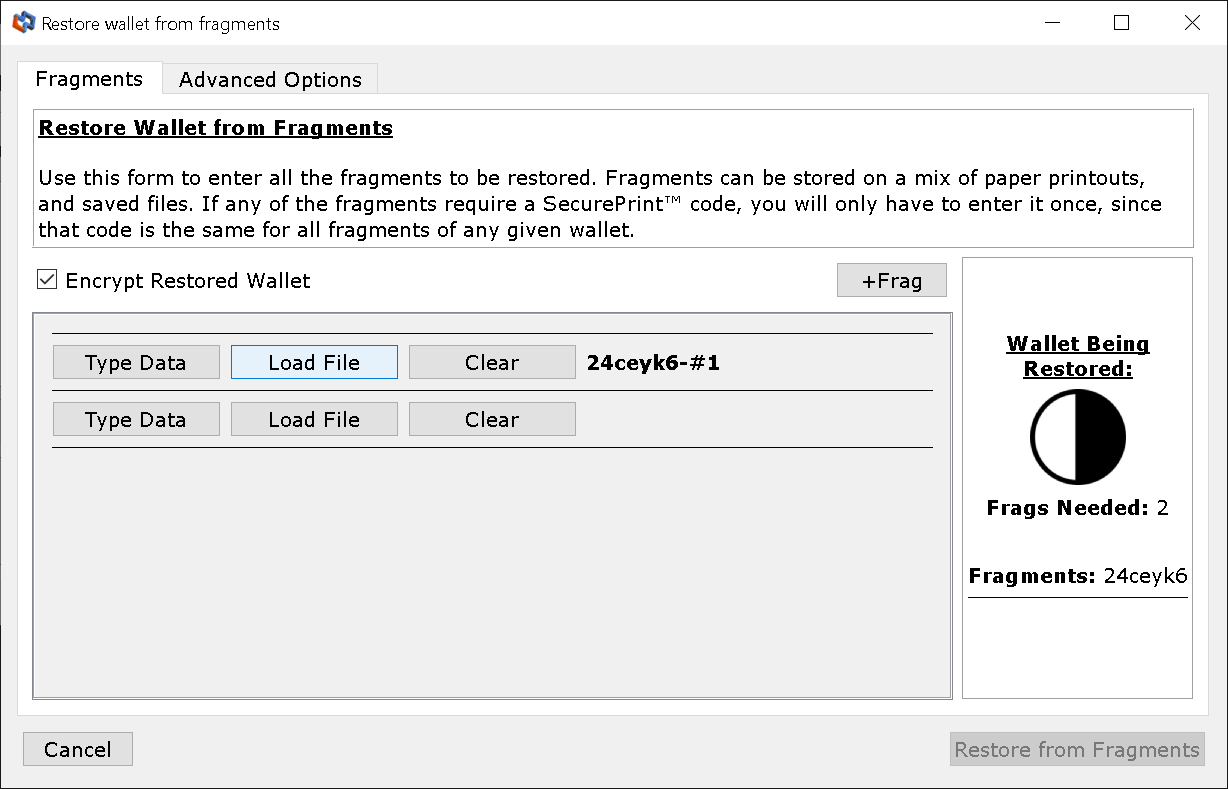
- Open Armory and click "Import or Restore Wallet".
- Select "Fragmented Backup".
- Enter each fragment (and its SecurePrint code, if used).
- Click "Restore From Fragments" and compare the wallet ID.
Fragmented backups created before Armory 0.96.3 were affected by a security flaw. After recovering such a wallet, move its funds to a new wallet. Updating Armory or restoring the same keys does not undo the old backup’s exposure.
Restore an Armory Lockbox (Multisig)
Lockboxes are Armory's multi-signature feature, for example a 2-of-3 setup where any two of three keys must sign. A lockbox is not a wallet of its own: it combines multiple signing keys, typically held in separate wallets.
It is not the same as a fragmented backup. A fragmented backup splits the backup of one wallet into several pieces. A lockbox spreads the spending permission across several wallets: you restore each wallet normally and need enough of them together to sign transactions.
To restore a lockbox, you need:
- enough of the participating wallets (restored with the methods above) to reach the signature threshold.
- the lockbox definition, which you import via the Lockbox Manager.
Where to find the definition: Armory normally stores its lockbox definitions in multisigs.txt inside the Armory data folder.
To import a saved definition in Armory:
- Select User → Expert to make the MultiSig menu available.
- Open MultiSig → Lockbox Manager…
- Click Import Lockbox.
- Click Load from file and select your .lockbox.def file or paste the complete exported lockbox text block, including its beginning and ending lines.
- Click Done, then check that the imported lockbox matches your original Lockbox ID and signing arrangement.
- For a previously used lockbox, restart Armory and allow blockchain scanning to complete so it can discover the transaction history and balance.

Need Help Recovering Your Armory Wallet?
Forgotten passphrase, missing SecurePrint code or a damaged wallet file? ReWallet evaluates your case for free and only charges a fee if the recovery succeeds.
Recover your Armory walletStep 4: Get Your Bitcoin Out of Armory
Once your wallet is restored, there are three options to regain access to your Bitcoin.
Option A: Export Your Private Keys (No Blockchain Download)
This is the fastest route for most people. You export the private keys from Armory in offline mode and import them into a modern wallet that doesn't need a full node.
- In Armory, double-click the wallet in "Available Wallets".
- Click "Backup This Wallet" and choose "Export Key Lists".
- Enter your passphrase to unlock the wallet.
- Tick "Private Key (Plain Base58)", "Include Unused (Address Pool)" and "Omit spaces in key data".
- Click "Save to File…" and save the file on the same offline computer.
- Import the private keys into a modern wallet, for example restoring in Electrum via "Import Bitcoin address or private keys".
- Check that the addresses shown in the new wallet match your Armory addresses, then send the funds to a new wallet with a fresh, modern backup.
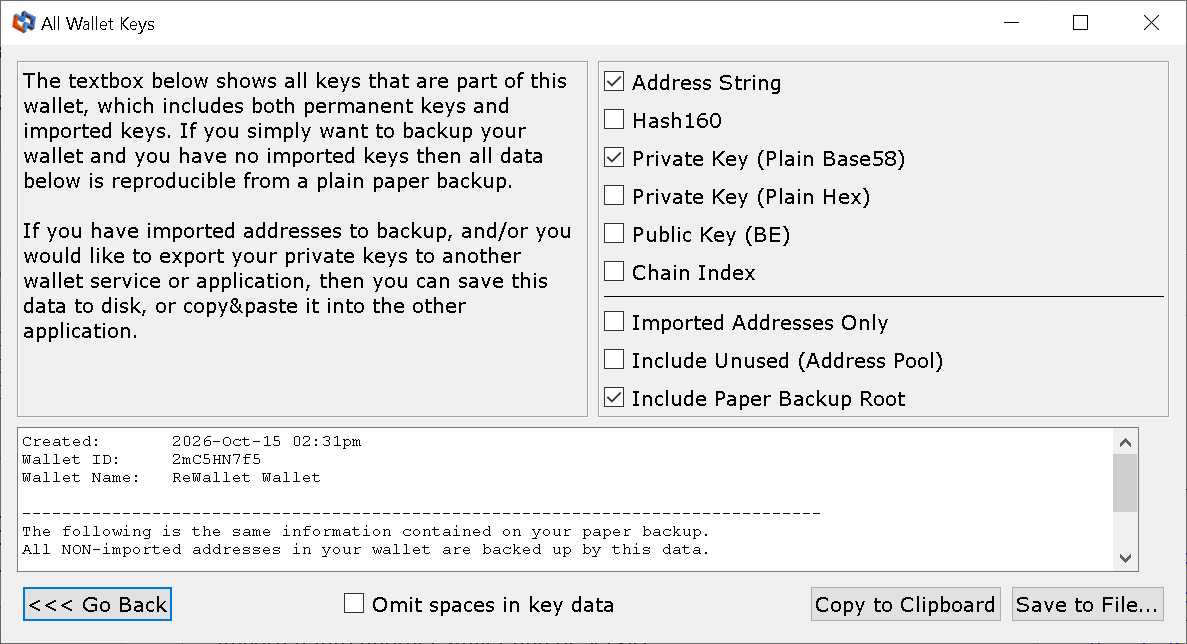
Security warning: The exported file contains your private keys unencrypted. Anyone with this file can spend the Bitcoin controlled by those keys. Only perform this on a trusted device in a secure environment, at best with the device offline.
Option B: Sync Bitcoin Core and Send From Armory
If you prefer to stay within Armory, you need a fully synced Bitcoin Core node. Plan for several hundred GB of storage and a sync time of days. Please be aware that not every Bitcoin Core version works with Armory.
- Install Bitcoin Core and let it sync completely. Pruned mode doesn't work with Armory.
- Start Armory in online mode. It connects to Bitcoin Core and builds its own database.
- Once Armory shows "Connected" and your balance, send your Bitcoin to a new wallet.
Option C: Offline Signing
If you set up Armory with an offline signing computer, you need both: the watching-only wallet on the online computer and the full wallet on the offline one. You create the transaction online, sign it offline and broadcast it online:
- On the online computer, use the watching-only wallet to create an unsigned transaction and save it to a USB drive.
- Transfer it to the offline computer, review it and sign it using the full wallet.
- Save the signed transaction to the USB drive.
- Return to the online computer and broadcast it through Armory. Alternatively, submit the signed transaction’s raw hex, not the Armory transaction file, through Mempool.space.
Can You Recover an Armory Wallet Without Armory?
Not directly and only in some cases. Armory derives its keys with its own method, which predates the BIP32 and BIP39 standards. That's why you can't import your Armory root key into a hardware wallet or any other BIP39 wallet. You need Armory (or software implementing Armory’s key-derivation method) to turn the root key into private keys. After that, the exported private keys can be imported into another Bitcoin wallet such as Electrum.
Troubleshooting: Common Armory Recovery Problems
Forgotten Armory Passphrase
Armory has no passphrase reset option. Your options depend on what is still available to you:
- With a paper backup: A paper backup lets you restore your wallet without the original passphrase. If the backup is SecurePrint-protected, you still need its SecurePrint code.
- With only the wallet file or a digital backup: If your wallet-file backup is encrypted, restoring it does not bypass the passphrase. Armory encrypts the private keys using a key derived from your passphrase through a deliberately costly, memory-hard function. This slows password guessing, but weak or partly remembered passphrases can still be recoverable. Guessing blindly is hopeless, but a targeted search built on what you remember (fragments, old passwords, patterns, keyboard layout) can work.
Want to Recover Your Armory Passphrase?
ReWallet can help you recover your Armory passphrase. The best part: ReWallet works solely on a success-based fee for you. No recovery, no pay!
Recover your Armory passphraseLost or Incomplete SecurePrint Code
Check where you kept other wallet notes, the back of the printout and any digital notes from that time. If you still have the wallet file and know the passphrase, you don't need the SecurePrint code: restore from the wallet file instead. If only a few characters of the code are missing or unreadable, the missing characters can often be reconstructed.
Unreadable, Cut-Off or Missing Characters in the Root Key
There are two ways a root key printout ends up incomplete:
- Aging: faded ink, smudges or water damage make individual characters unreadable.
- Printing errors from the start: Incorrect printer settings, scaling or printer-driver behavior can leave a backup cut off or unreadable. For example, if the printer settings are set for A5, the backup, which is laid out for A4 or US Letter, could come out cut off. Many users never noticed, because they didn’t test-restore the backup after printing it. This kind of backup can be incomplete from day one.
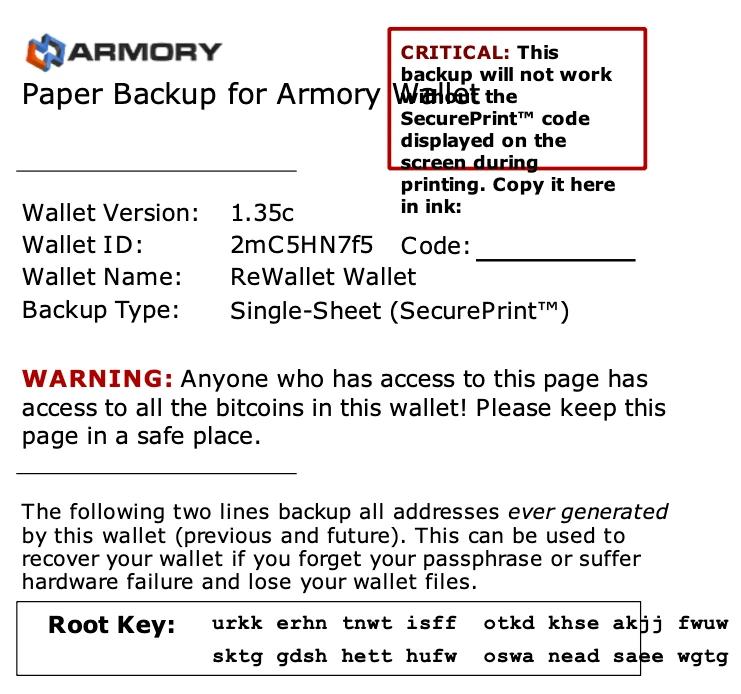
If your printout looks cut off at the edges or lines run into each other, check the QR code on the same sheet as well. It contains the same recovery data, so if the QR code printed completely, scanning it may still recover your wallet. If you used SecurePrint, you’ll still need the SecurePrint code.
A partly unreadable or incomplete root key is often still recoverable. Armory’s root key uses an alphabet of only 16 letters, so every missing character has just 16 possible values.
Corrupted Armory Wallet File
If Armory crashes when you enter your passphrase or the wallet won't load, the wallet file may be damaged. First make a copy of the file. If you have a paper backup, remove the damaged wallet from Armory and restore from paper.
In Armory 0.96.5, the repair tool is under Wallets → Fix Damaged Wallet. This opens “Wallet Recovery Tool”, where you can choose “Browse File System”, select the wallet file and click “Recover”.
Rebuild and Rescan Databases does not repair a wallet file. It only rebuilds Armory's index of the blockchain.
Armory Database Errors and "Failed to Spawn the DB"
What “failed to spawn the DB” actually means: the startup routine encountered an exception or could not connect to the launched database process. The message explicitly says: “Refer to the dbLog.txt for more information.”
Armory runs a separate database process (ArmoryDB) that reads Bitcoin Core's block files. When it can't start or its data is broken, Armory shows database errors or never finishes scanning. To fix this issue, you can try the following:
- Check
armorylog.txtanddbLog.txtfirst. - Make sure Bitcoin Core is fully synced, not pruned and that Armory points to the correct Bitcoin Core data folder (File > Settings).
- Minor problems such as missing transactions or wrong balances: Help > Rescan Databases.
- Crashes during startup: Help > Rebuild and Rescan Databases.
- If that fails: close Armory, delete the
databasesfolder inside the Armory data directory and restart Armory for a full rebuild. Your wallet files are not stored there, but we suggest backing them up before performing any recovery efforts.
If your goal is only to get your BTC out, you can skip all of these and use offline mode with Option A from above.
Balance Shows Zero After Restoring
If your balance is zero after a successful restore with no error message, these are the most common reasons:
- Armory is in offline mode or not yet synced: offline, balances are always zero.
- You restored the wrong wallet, or the restored wallet has not yet discovered all previously used addresses.
- Your funds are in a lockbox, not in the regular wallet.
- Your node or database may be lagging behind or is not properly connected.
Bitcoin Cash and Other Forked Coins in Old Armory Wallets
If your Armory wallet held Bitcoin on August 1, 2017, keys controlling BTC at the Bitcoin Cash fork may also control unspent BCH. Other forked coins depend on the relevant fork and subsequent transaction history. Check each chain separately rather than assuming the coins remain available.
Always secure your Bitcoin first: move the BTC to a new wallet before importing your keys for forked coins anywhere else.
When to Turn to an Expert
You can do most Armory restores yourself if you have a complete paper backup or the wallet file with its passphrase. A recovery service is worth it when information is missing: a forgotten passphrase, an incomplete SecurePrint code, unreadable root key characters, a damaged or deleted wallet file, or a lockbox with missing parts.
ReWallet evaluates your case for free. If we take it on, the fee is a share of the recovered funds and only due after a successful recovery. No recovery, No fee!
Recover Your Armory Wallet With ReWallet
Describe your case and we'll get back to you within 24 hours on business days. Free evaluation, success-based fee only.
Start your free evaluationArmory Wallet Recovery FAQs
macOS: ~/Library/Application Support/Armory.
Linux: ~/.armory.
The wallet file is named armory_