If you are trying to get back into a Sparrow wallet, this guide walks through every way to restore your Sparrow wallet, from a single seed, a hardware wallet, a multisig setup or a wallet file. It covers which other wallets you can import into Sparrow and ends with a troubleshooting section for the problems you may run into. For the harder cases, a lost seed, a forgotten password or passphrase or a corrupted wallet file, we explain what is still possible.
What you need before you restore a Sparrow wallet
Sparrow is a desktop wallet for Windows, macOS and Linux. Before you start, it helps to know what you might need to restore your wallet. Depending on the available information the recovery paths may differ:
- Your seed phrase: Sparrow wallet supports 12/15/18/21 and 24 word BIP39 seed phrases as well as 20/33 word SLIP39 seeds, plus a passphrase if you added one.
- Your optional passphrase: As above, if you set an optional passphrase while creating your Sparrow wallet, you need the exact same optional passphrase to restore it.
- Your wallet file: Sparrow saves an encrypted wallet file on your disk, locked with a wallet password (if you set one). On macOS and Linux it is stored in the hidden
~/.sparrowdirectory and on Windows in%APPDATA%/Sparrow. Sparrow also keeps automatic, timestamped backup copies of it in abackupsubfolder.
Always download Sparrow from the official website, sparrowwallet.com and verify the download before you install it. If you want to be extra cautious about your privacy, we recommend recovering your Sparrow wallet in offline mode and connecting to your own Bitcoin node or private Electrum server later on.
How to restore a Sparrow wallet from your BIP39 seed phrase
This is the most common path for restoring your Sparrow wallet. If you have your seed, you do not need your wallet file or password at all. If you used an optional passphrase with your Sparrow wallet, you will also need your optional passphrase.
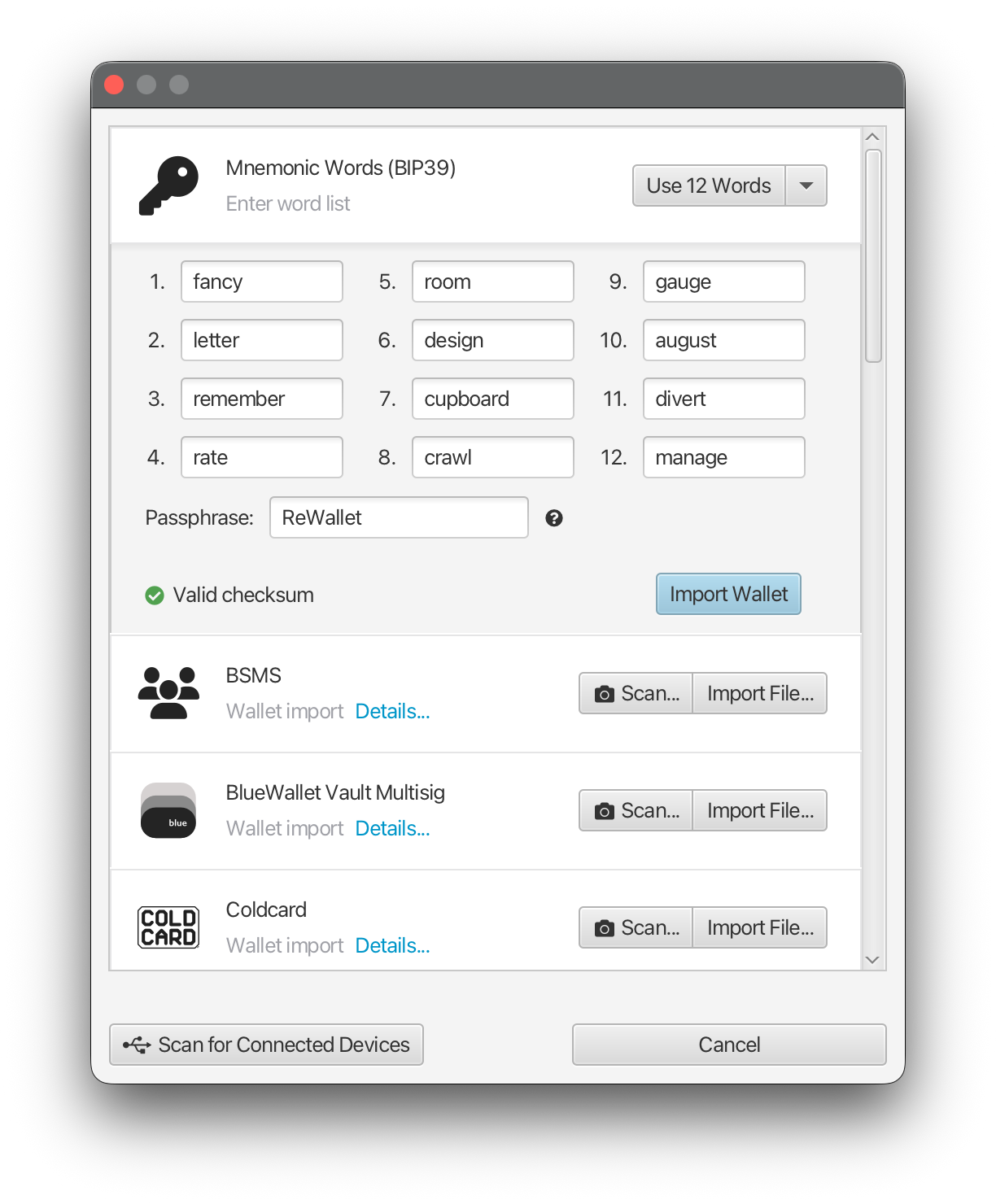
- Open Sparrow and choose “Import Wallet”.
- Select “Mnemonic Words (BIP39)” and your seed length via the dropdown.
- Type your BIP39 seed words in order. If your BIP39 seed is valid you will see “Valid Checksum”.
- If you set a BIP39 passphrase, check the “Use passphrase?”-box and enter your BIP39 passphrase.
- Click “Discover Wallet”
- Choose the correct Script Type. Native SegWit (P2WPKH) is the modern default, but older wallets may use Nested SegWit, Legacy and newer ones may use Taproot. If you are not sure, please refer to our troubleshooting guide below.
- Click “Import” and enter a name for this wallet.
- You can now optionally set a password for your backup wallet file.
- Connect to your server via “Settings” -> “Server” and let Sparrow scan the blockchain. Your balance and history will appear.
If your balance shows as empty after restoring your wallet, do not panic. Most of the time this is due to the gap limit and a quick fix. See the troubleshooting section.
Restoring with a BIP39 passphrase
A passphrase, sometimes called the 13th or 25th word, creates a completely separate wallet from the same seed. You enter it by checking the “Use passphrase?”-box and entering it in the passphrase field. The important thing to understand is that Sparrow stores nothing derived from your passphrase. If you try to import a BIP39 passphrase wallet, with no balance Sparrow will only show a warning on your first try, after that there is no telltale sign of whether you are using the correct passphrase except for the wallet balance.
How to restore from a hardware wallet
Sparrow works with all the major hardware wallets, both connected over USB, microSD and airgapped via QR-code, including Coldcard, Trezor, Ledger, BitBox, Jade, Passport, Seedsigner and Keystone.
Restore USB connected hardware wallets
- Choose “Import Wallet”.
- Click the bottom right button “Scan for Connected Devices”. If your device is successfully connected it will appear on the top of the list.
- Click “Import Keystore”.
- You can now optionally set a password for your backup file.
- Connect to your server via “Settings” -> “Server” and let Sparrow scan the blockchain. Your balance and history will appear.
If the hardware wallet itself is lost or broken but you still have its recovery seed, you do not need the device. Restore the seed directly using the seed method above or import it into a new hardware wallet and connect it to Sparrow.
Please note: The backup file created in step 4, only contains your hardware wallets public keys. Your private keys should never leave your hardware wallet. If you lose your device and seed phrase, the wallet file created by Sparrow is not a sufficient backup.

Stuck restoring your Sparrow wallet?
If the steps above did not work, we may still be able to help recover your wallet.
Recover my Sparrow walletHow to restore a multisig wallet in Sparrow
Multisig recovery has one crucial difference that trips a lot of people up: you cannot rebuild a multisig wallet from the seeds alone. You also need the wallet's output descriptor or the complete set of cosigner public keys (xpubs) together with the policy, threshold and script type. The descriptor is the map that tells Sparrow how the keys fit together.
- Choose File, then New Wallet and set Policy Type to Multi Signature.
- Set the quorum, for example 2 of 3.
- Add each keystore, whether that is a seed, an xpub or a hardware wallet or use “File” and “Import Wallet” to load the descriptor or wallet configuration file directly.
- Apply and optionally set a password.
- Connect to your server via “Settings” -> “Server” and let Sparrow scan the blockchain. Your balance and history will appear.
If you have your keys but have lost the descriptor and cannot reconstruct the policy or you are missing one or more cosigner keys, this is a case where a specialist may still be able to help. A professional Sparrow recovery can assess whether the wallet is rebuildable from what remains.
How to restore from a Sparrow wallet file or backup
If you still have your wallet file and its password, Sparrow has the onboard tools to restore your wallet. Just open it: choose “Open Wallet” and select your Sparrow wallet file or place it back in the wallets folder inside your Sparrow data directory. If you set a password for your wallet file, you will also need to enter it, as well as any optional passphrase you may have set.
If the wallet will not open because the file is damaged, Sparrow's automatic backups are the next place to look. Open the most recent timestamped copy from the “backup“ subfolder. If you have the file but have forgotten its password and you also still have your seed, the simplest route is to ignore the file and restore from your seed instead.
You can find your Sparrow wallet files on Linux and MacOS via ~/.sparrow or %APPDATA%/Sparrow on Windows
Which wallets can you restore in Sparrow?
Because Sparrow utilizes the BIP39 and output descriptor standards, it can restore or import a wide range of other wallets. As long as you have the seed and can match the derivation and script type or you have the descriptor, you can typically bring in wallets such as:
- Electrum
- BlueWallet
- Samourai
- Nunchuk
- Coldcard, Trezor, Ledger and other hardware wallets
- Blockstream Green
- Wasabi
- Specter
- And any other BIP39 or SLIP39 wallet.
Troubleshooting: common Sparrow recovery problems
Most restore problems have a simple, free fix. A few are genuine dead ends where you may need help. We have separated them below and where an exact error message appears, we have quoted it so you can match what you see on screen.
My balance is empty after restoring from seed
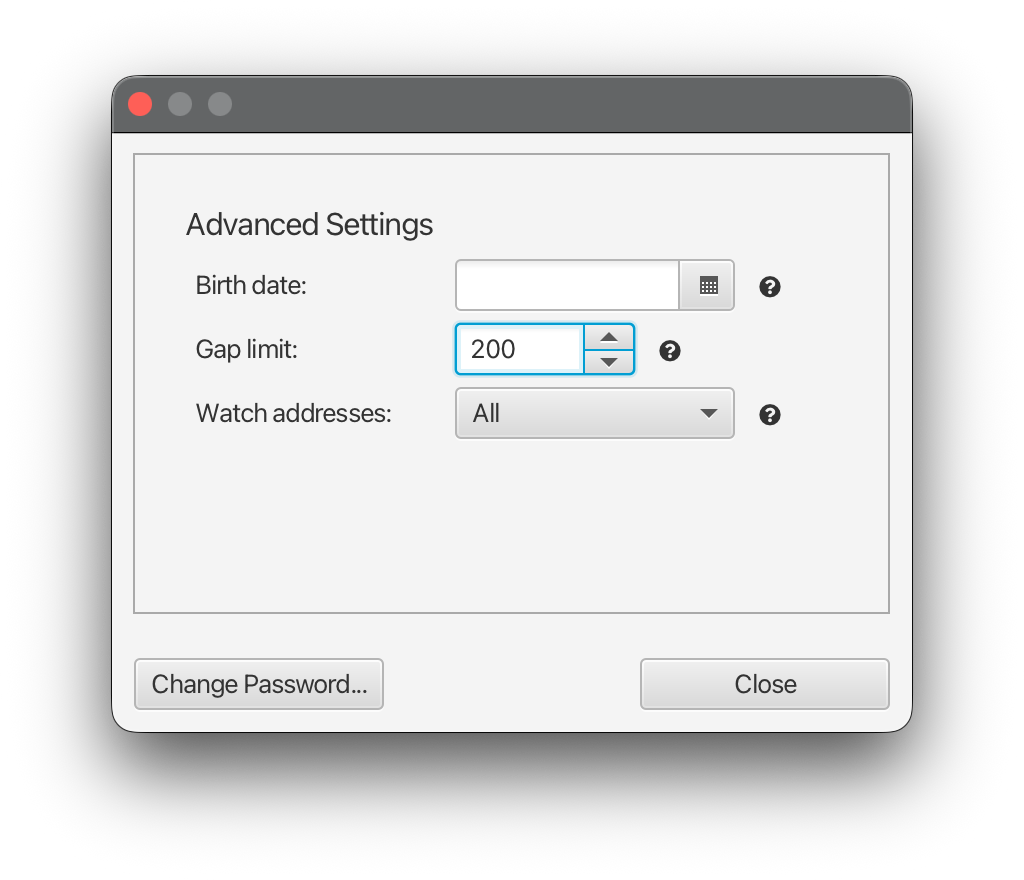
This is the most common false alarm. Sparrow only scans a limited number of unused addresses by default, called the gap limit, which is 20 for a normal wallet and 40 for old Samourai Postmix wallets. Older or heavily used wallets can look empty until you raise it. Open the wallet's Settings tab, increase the gap limit and let Sparrow rescan.
My restored wallet shows the wrong addresses or different or empty balance
This usually means the Script Type or derivation path does not match the wallet you originally used. The same seed produces completely different addresses under Native SegWit, Nested SegWit, Legacy and Taproot. Restore the wallet and try the other script types until the addresses match the ones you remember. If testing all script types still doesn’t resolve your issue, feel free to reach out to our team for professional assistance with Sparrow wallets.
Sparrow cannot find my wallet or shows no wallets
Your wallet file may simply not be in the Sparrow wallet folder. Check ~/.sparrow on macOS and Linux or %APPDATA%/Sparrow on Windows and use File, then Open Wallet, to point Sparrow to the file directly.
Sparrow will not connect or no balance loads
This is mostly a connection issue. Check your server settings and make sure Sparrow is connected to your Bitcoin Core node, a private Electrum server or a public server. Also check your Bitcoin Core node or Electrum server for any issues.
My hardware wallet is not detected
If you see "Could not open device or get fingerprint: Timeout reading response from device. Check the USB connection.", this is a connection problem. Make sure the device is switched on, unlocked and already set up with its seed, then check your cable and port.
My Sparrow wallet file will not open
First, work out whether the file is damaged or whether you are opening it the wrong way.
If you see "Failed to open database file", the wallet file itself has been damaged. Try opening the most recent automatic backup from the backup subfolder. If the backups are also unusable and you no longer have your seed, the file may still be repairable and a professional Sparrow recovery service can attempt to recover your file.
If you see "Unrecognized extended key header for mainnet: H2encrypt", you are trying to import your wallet file as if it was a key. A Sparrow wallet file is an encrypted database, not a keystore, so it cannot be imported that way. Open it instead with File, then Open Wallet.
If you see "Error Opening Wallet: Unsupported file type", the file you selected is not a Sparrow wallet file. Make sure you are opening the actual wallet file from your Sparrow folder and not an export, a screenshot or the wrong file.
A wallet or keystore import is rejected
When you import a wallet, keystore or descriptor file and Sparrow refuses it, the message usually points to the cause. "Invalid file: Cannot recognise the format of the ... file", "This file does not describe a valid wallet: NO keystore specified", "File was not in JSON Format", "Illegal base64”.