Understanding Trezor's Optional Passphrase
One popular bonus feature Trezor wallet users enjoy is known as an “optional passphrase”. With this secret word or sentence, crypto holders can put an extra barrier between thieves and their Trezor account. Although Trezor’s passphrase is an excellent add-on feature, it’s another piece of crucial info crypto investors might misplace, misspell, or forget.
So, what happens if you can’t remember your Trezor passphrase? Is there any way to recover your cryptocurrency in a passphrase-protected Trezor wallet? Let’s take a closer look at how Trezor’s optional passphrase works and how to regain access to your account.
How Trezor’s Optional Passphrase Protects Your Crypto Assets
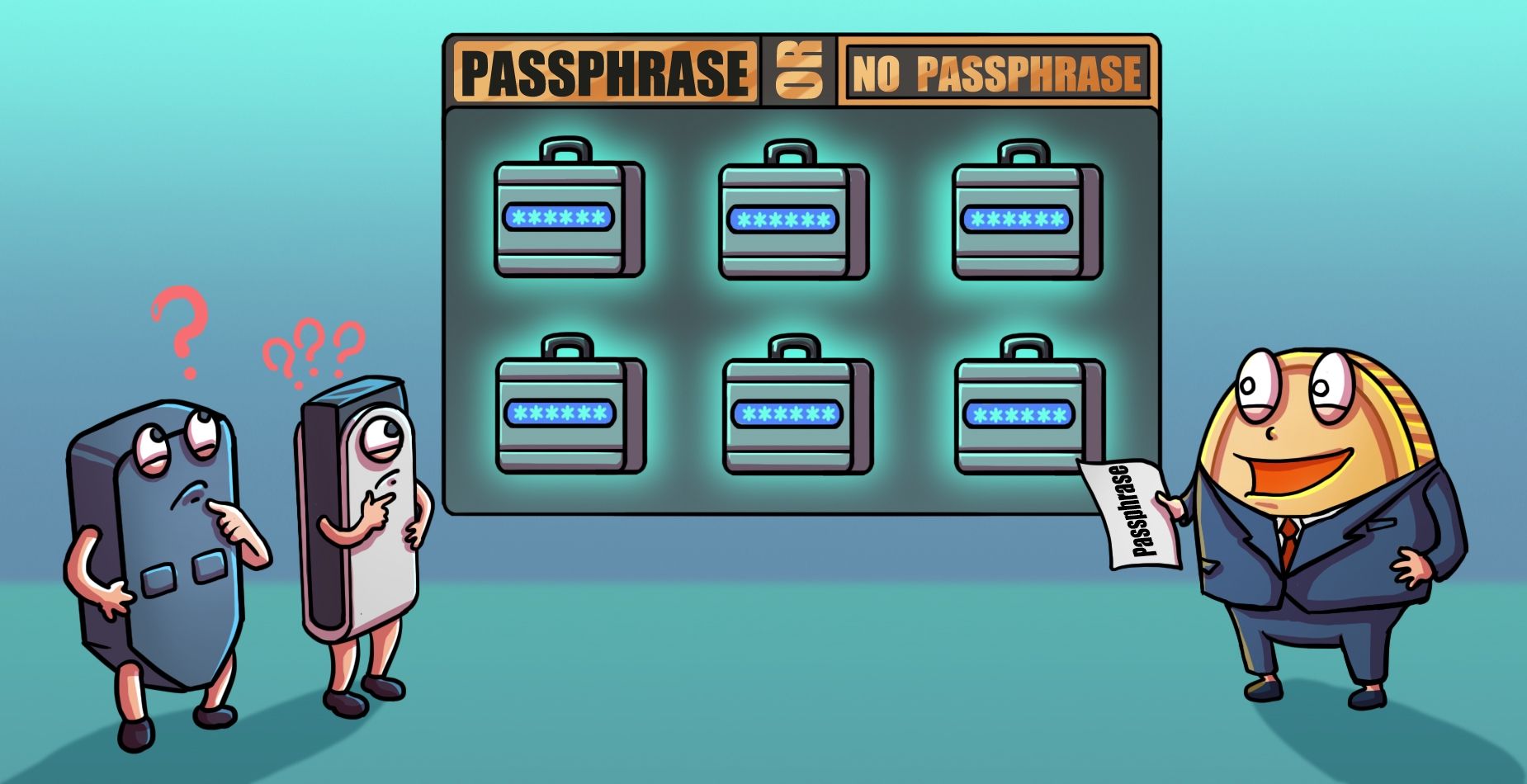
Trezor’s optional passphrase is an additional password you could use to create another wallet address on your Trezor device. Adding a passphrase to your Trezor wallet will generate a new crypto account with different addresses than your “standard” account, a so-called “Hidden Wallet”. You can use multiple passphrases to create distinct Trezor wallets, each with unique addresses for crypto assets.
Although the optional passphrase isn’t technically a part of a Trezor seed phrase, some people call it the “13th” or “25th word.” Why? Well, if you don’t have this “25th word” for a passphrase-protected wallet, you can’t access the funds in the associated account. The Trezor “seed phrase” can only get you into your standard wallet account.
Enabling Optional Passphrase Function in Trezor Suite - Step by Step
Most Trezor wallets have the passphrase function automatically enabled, so you should see the option to create a “Hidden Wallet” when connecting your Trezor device to the Trezor Suite software. However, if you don’t have the choice to make a “Hidden Wallet,” there’s a simple way to enable this setting:
- Open the Trezor Suite software.
- Connect your Trezor device to your PC.
- Click the “Gear” icon to your Settings portal.
- Select the “Device” tab.
- Slide the switch near “Passphrase.”
- Confirm this change on your Trezor device.
Whenever you want to make a new “Hidden Wallet” account, you must create a passphrase of no more than 50 bytes (or about 50 characters). Please keep in mind that spaces count as characters, and all passphrases are case-sensitive.
As an example, if you use “Crypto 1992” as your passphrase, the “C” must be capitalized and you need to include the space before 1992. If you try to re-enter a Hidden Wallet with the phrase “crypto 1992,” you’ll just create a new Hidden Wallet address.
Common Trezor Passphrase Issues and Solutions

Lost access to your Trezor?
ReWallet has helped numerous clients with Trezor hidden wallet recovery over the years. Our team has advanced tools and techniques specifically designed for Trezor wallet recovery.
Recover your Trezor walletReasons for Passphrase Not Working
There are many potential reasons you can’t successfully open a Trezor “Hidden Wallet”, but many people have issues with their passphrase. For instance, someone could lose or misremember their passphrase. It’s also common for people to forget Trezor passphrases are case-sensitive and include spaces. Therefore, even if someone has the right passphrase, it may not have the correct cases or appropriate spaces. People may also enter a passphrase with a typo, misplace a backup copy of this password, or miswrite it on paper or a digital file.
Troubleshooting Tips for Passphrase Issues
If you’re having trouble with your Trezor passphrase, consider the following troubleshooting tips:
- Double-check the passphrase for typos and ensure it is entered exactly as you initially created it.
- Verify that the caps lock key is off, as passphrases are case-sensitive.
- Make sure you’re using the correct keyboard layout, especially if you’ve switched between different language settings.
- Try entering the passphrase again after restarting your Trezor device and the Trezor Suite software.
- Confirm that you’re using the latest version of the Trezor Suite software, as outdated versions may cause compatibility issues.
If you’ve tried all the troubleshooting tips and still can’t access your Trezor wallet, it might be time to seek professional assistance.
How ReWallet Can Help Recover Your Lost Trezor Passphrase
Thankfully, in most of these cases, ReWallet can help you get back into your Hidden Wallet. The most important information we need is the recovery seed phrase. If you have your seed phrase—even if it’s incomplete or has a few errors—ReWallet could help you get into your Trezor account.
Best Practices for Storing Trezor Optional Passphrase
Since users get to choose the optional passphrase, it’s easier to commit it to memory versus the seed phrase. The advantage of memorizing your passphrase is that a thief can’t steal your crypto even if they have a copy of your seed phrase. If you don’t have your passphrase on paper or in a digital file, thieves can only guess what this extra password is.
However, if you’re uncomfortable committing your passphrase to memory, you can write it on paper, save it in an encrypted file, or etch it into a steel capsule. In any of these cases, please store your passphrase in a different location from your seed phrase.
For more tips on how to store your essential passcodes, check out this previous ReWallet guide.
What to do if You Need Trezor Passphrase Recovery Assistance
If you’re struggling to get into a Trezor wallet with your passphrase, you can fill out a request form. After reviewing the details of your case, our team will let you know the best strategy to recover your Trezor wallet account. Also, please remember, ReWallet only charges a success-based fee, so there’s no risk of paying for a failed recovery attempt.
FAQs - Trezor Optional Passphrase
Also, unlike your optional passphrase, you don’t get to choose the words in your seed phrase. The passphrase is a bonus word or sentence you create to access a separate “Hidden Wallet” within your Trezor Suite. While the passphrase is essential to enter these “Hidden Wallet” accounts, it’s unnecessary to enter Trezor’s “Standard Wallet”. It’s also worth mentioning the optional passphrase isn’t stored in your Trezor device, but the seed phrase is.
If you’re unsure about using a passphrase, consider testing this tool with one Hidden Wallet to see how it works. Send a small amount of crypto to this new Hidden Wallet address from your Trezor’s Standard Wallet so you won’t feel bad if you make a mistake. After you make a few successful transfers and understand how the passphrase works, you can decide whether to keep your Hidden Wallet or disable this feature in your Trezor Suite’s Settings tab.