You can usually restore MetaMask with your Secret Recovery Phrase. If you've lost it, your options depend on what you still have. Find your situation in the table below and this guide will show you how to recover your wallet.
All instructions were tested with MetaMask Extension version 13.53.0 and MetaMask Mobile version 8.15.0.
Find Your Recovery Method
| Your situation | Start here | What you need |
|---|---|---|
| I don't have access, but have my recovery phrase | Method 1: Restore with your Secret Recovery Phrase | Your Secret Recovery Phrase (12 words for wallets created in MetaMask) |
| I forgot my password but have my recovery phrase | Method 2: Reset your password with your phrase | Your Secret Recovery Phrase |
| I lost my phrase but can still unlock MetaMask | Back up your Secret Recovery Phrase now | A working installation and your password or biometrics |
| I lost my recovery phrase and my password | Methods 2 and 3: Check whether vault recovery is possible | Surviving wallet data and your password or password clues |
| I deleted MetaMask and have no phrase backup | Preserve your Vault data first | Original device, browser profile or backups |
| I restored MetaMask, but accounts or funds are missing | Restore your accounts, tokens and networks | Ideally, your original public address and your recovery phrase or private key |
| I used Google, Apple or Telegram to set up MetaMask | Method 4: Recover through your social login | Linked account and MetaMask password |
| I connected a Ledger or Trezor | Restore MetaMask with hardware wallets | The device and PIN or its recovery backup, plus the passphrase if you used one |
MetaMask staff will never ask for your recovery phrase, password or private keys. Never enter them on a website, in a chat or in a form, no matter who contacts you.
Five Terms You Need for MetaMask Recovery
- Secret Recovery Phrase (SRP): the 12 words that back up your wallet.
- Password: protects access to MetaMask on one device. It doesn't recreate your wallet and it does not act as an optional BIP39 passphrase.
- Vault: the encrypted wallet data MetaMask stores on your device or in your browser.
- Account: one address shown in your wallet. One recovery phrase can hold multiple accounts.
- Network: the blockchain on which you're checking your assets, for example Ethereum, Polygon or Arbitrum. The same address can hold different assets on different networks.
Before You Start Any Recovery Efforts
When recovering a MetaMask wallet, you will most likely overwrite the existing MetaMask vault on your device. If you currently have an accessible MetaMask wallet on your device, with or without funds, back it up first.
There are generally two options. Option A is backing up your Secret Recovery Phrase:
- Navigate to "Settings" under "Help and Settings".
- Click "Security and Passwords".
- Tap "Manage Wallet Recovery".
- Press "Reveal" and follow the instructions for backing up your Secret Recovery Phrase.
- If you use more than one Secret Recovery Phrase in MetaMask, repeat this for each one.
Imported accounts: accounts you added with a private key are not part of any recovery phrase. Back up their private keys separately: open the account menu, select “Account details” and then “Show private key”.
Option B only works with the browser extension on desktop devices. It backs up your encrypted MetaMask vault: a complete copy of your wallet data, including every recovery phrase and every separately imported private key stored in MetaMask. We recommend it before any reset or restore, even if you know your password. If you forgot your password, it is essential, because any password recovery attempt requires the vault. To back up your vault, do the following:
Navigate to your browser's extension folder on your device. Depending on your operating system and browser, it is located here:
| Browser | OS | Location |
|---|---|---|
| Chrome | Windows | %LOCALAPPDATA%\Google\Chrome\User Data\PROFILE\Local Extension Settings\nkbihfbeogaeaoehlefnkodbefgpgknn |
| Chrome | macOS | ~/Library/Application Support/Google/Chrome/PROFILE/Local Extension Settings/nkbihfbeogaeaoehlefnkodbefgpgknn |
| Chrome | Linux | ~/.config/google-chrome/PROFILE/Local Extension Settings/nkbihfbeogaeaoehlefnkodbefgpgknn |
| Edge | Windows | %LOCALAPPDATA%\Microsoft\Edge\User Data\PROFILE\Local Extension Settings\ejbalbakoplchlghecdalmeeeajnimhm |
| Edge | macOS | ~/Library/Application Support/Microsoft Edge/PROFILE/Local Extension Settings/ejbalbakoplchlghecdalmeeeajnimhm |
| Brave | Windows | %LOCALAPPDATA%\BraveSoftware\Brave-Browser\User Data\PROFILE\Local Extension Settings\nkbihfbeogaeaoehlefnkodbefgpgknn |
| Brave | macOS | ~/Library/Application Support/BraveSoftware/Brave-Browser/PROFILE/Local Extension Settings/nkbihfbeogaeaoehlefnkodbefgpgknn |
| Brave | Linux | ~/.config/BraveSoftware/Brave-Browser/PROFILE/Local Extension Settings/nkbihfbeogaeaoehlefnkodbefgpgknn |
| Firefox | Windows | %APPDATA%\Mozilla\Firefox\Profiles\PROFILE\storage\default\moz-extension+++UUID^userContextId=4294967295\idb |
| Firefox | macOS | ~/Library/Application Support/Firefox/Profiles/PROFILE/storage/default/moz-extension+++UUID^userContextId=4294967295/idb |
Replace PROFILE with your browser profile folder. In Chrome, Edge and Brave it is usually Default, or Profile 1, Profile 2 and so on if you use several profiles. In Firefox it is the folder ending in .default-release. In Edge, the folder is nkbihfbeogaeaoehlefnkodbefgpgknn instead of ejbalbakoplchlghecdalmeeeajnimhm if you installed MetaMask from the Chrome Web Store rather than from Edge Add-ons.
Copy the entire last folder of the path for your browser and store the copy somewhere safe.
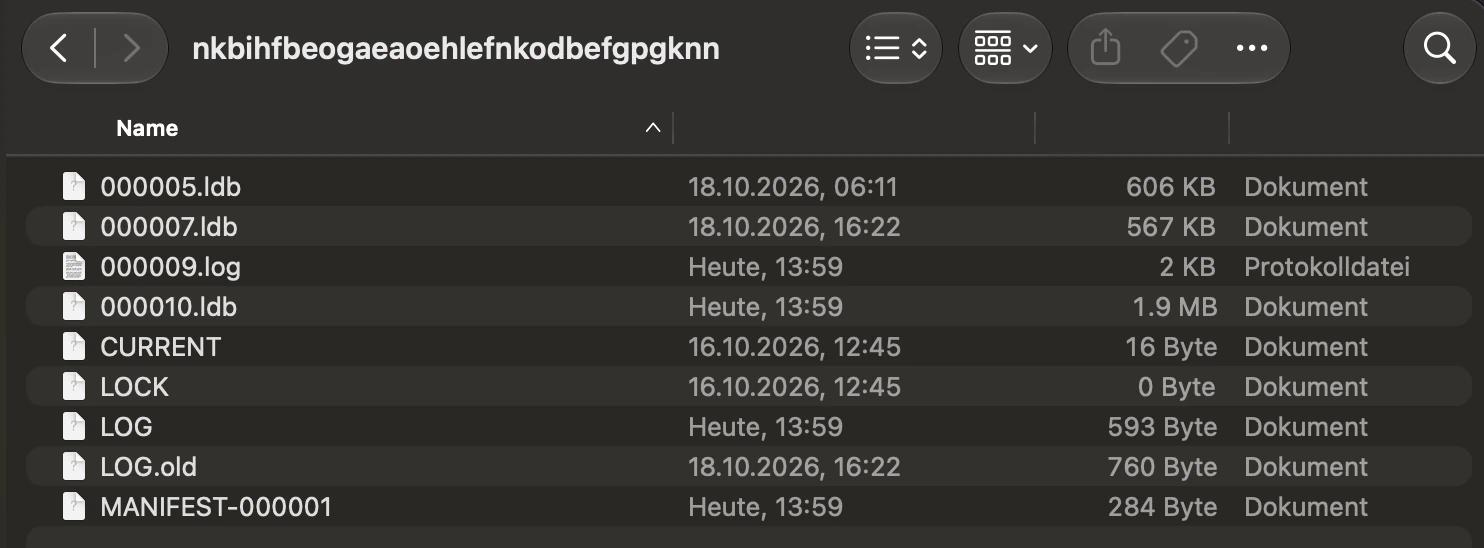
In Chrome, Edge and Brave, the vault is stored in the files with the .ldb extension. If there are several, the vault is typically in the one with the lowest number, such as 000005.ldb. Older .ldb files can also contain earlier versions of your vault, which is another reason to copy the whole folder rather than a single file.
Firefox stores extension data differently. MetaMask’s data lives in an installation-specific moz-extension+++UUID… folder and is encoded. To be safe, back up your whole Firefox profile folder and don’t uninstall MetaMask.
Method 1: Restore MetaMask With Your Secret Recovery Phrase
Use this method if: you have your 12-word recovery phrase.
- Open the MetaMask browser extension.
- Select "I have an existing wallet" and "Import using Secret Recovery Phrase".
- Enter your Secret Recovery Phrase word for word. Add a space between each word and make sure no one is watching.
- Set a password for MetaMask. This password also encrypts your MetaMask vault, but it does NOT act as an optional BIP39 passphrase.
- Tick the checkbox and click "Continue".
If you want to import a non-MetaMask BIP39 recovery phrase with more than 12 words, you can simply paste the full phrase into the box in step 3. Please note that MetaMask only supports BIP39 recovery phrases.
Your MetaMask wallet should now be restored and display your balance. If your balance is incorrect or some coins or tokens are missing, make sure that all networks and token contracts you've previously used are active. If you used tokens that needed a manual import, you can reimport them with this guide: How to import a token in MetaMask.
If this doesn't work: see "MetaMask Says Your Recovery Phrase Is Invalid" or "Accounts or Funds Missing After Restoring" below.
What this does not restore: accounts you imported separately with a private key or JSON file, hardware wallet accounts and accounts from other recovery phrases. These need their own backups or the original device.
MetaMask Says Your Recovery Phrase Is Invalid
MetaMask only supports generating and importing standard BIP39 recovery phrases. A phrase is rejected when a word is misspelled, not in the official BIP39 wordlist or missing. Every BIP39 phrase also contains a checksum, which needs to be valid for the phrase to be accepted. Words in the wrong order usually break the checksum. If the checksum is invalid, your phrase can't restore your wallet.
If MetaMask rejects your recovery phrase, we suggest the following:
- Check every word against the official BIP39 wordlist. Make sure every word is spelled correctly and is included in the wordlist. If you find a word that is not on the list, try its closest match.
- Compare the word order to your backup. Your recovery phrase is only valid when the order of words produces a valid checksum.
- Check your backup for spelling variants. The BIP39 wordlist uses US English, so a word like armor may have been recorded or entered as armour in British English.
- Get professional help. If all of the above fail, manual reconstruction may no longer be feasible. If you have all 12 words but not their order, there are 12! ≈ 479 million possible orders, and that's before any typos or wrong words. ReWallet has developed in-house tools that run on air-gapped machines to solve exactly that. Reach out to ReWallet for a free evaluation of your situation.
Method 2: Forgot Your MetaMask Password?
If you forgot your MetaMask password, don't lose hope. There are still a number of things you can do, depending on the material that is still available to you.
Secret Recovery Phrase Available
Use this if: you can't unlock MetaMask, but you still have your Secret Recovery Phrase.
If you forgot your MetaMask password for the browser extension or mobile app, you can reset it with your Secret Recovery Phrase. To do so, click "Forgot password?" and follow the steps from Method 1.
Resetting replaces the wallet on this device. Accounts you imported with a private key or JSON file and accounts from another recovery phrase will not come back with it. If you want to be on the safe side, back up your MetaMask extension data folder containing your vault first. That way, if your restore overwrites a wallet that belongs to another recovery phrase, a backup is still available. Refer to the "Before You Start Any Recovery Efforts" section for step-by-step instructions.
Secret Recovery Phrase Not Available
Use this if: you can't unlock MetaMask and don't have your Secret Recovery Phrase.
If you lost both your Secret Recovery Phrase and your password, you may still have options. Before proceeding, do NOT uninstall or reinstall MetaMask, do not clear your browsing data and do not delete the browser profile: your vault, which contains your private keys, may be irreversibly wiped with it. With the vault you can try to recover your password and extract your Secret Recovery Phrase. If you haven't already, now is the time to back up your MetaMask vault. See the steps above on locating and backing up your MetaMask vault.
Once your vault is backed up and MetaMask is still installed and asking for your password, you can try guessing your password manually. For a regular wallet protected by a local password, the versions tested for this guide don’t impose a permanent limit on wrong attempts. Wallets created with Google, Apple or Telegram are different: their online recovery can temporarily block you after too many incorrect attempts. Try the following:
- Try the most likely variations of your password.
- Record every wrong attempt, so you don't repeat guesses and have an exclusion list for later password recovery attempts.
- Expand your search to passwords you commonly used around the time you created your wallet.
- Search the passwords stored in your browser, your password manager or your notes, in case you saved it there.
If your guesses still fail, a professional wallet recovery service may be able to recover your password for you. Using your vault and custom algorithms, ReWallet can test a large number of permutations and variations of your password guesses. Everything runs on air-gapped, encrypted machines with tools developed in-house. The best part: ReWallet works solely on a success-fee basis, so you only pay after your funds have been successfully recovered. No recovery, no fee!
Method 3: Recover MetaMask With Your Vault Data
If you can't unlock MetaMask via its interface, or MetaMask was uninstalled but a copy of its data survived (a backup, an old drive or the original browser profile), you may be able to extract your Secret Recovery Phrase from the vault. This requires the correct password and the vault that belongs to the accounts you'd like to recover. If you had a hardware wallet connected, the vault only stores which accounts you used, not their private keys.
MetaMask stores your wallet as an encrypted vault on your device or in your browser profile. Finding the vault and decrypting it are separate challenges: a surviving vault does not automatically mean access. If that data still exists, follow these steps to extract your Secret Recovery Phrase:
- Find the vault data. For browser extensions, it is stored in the browser profile. See the guide above on how to locate your MetaMask vault.
- Open the official MetaMask Vault Decryptor. Browser extension vaults only; for mobile vaults see Method 5.
- Run the tool locally and offline. If you are unsure how to install the tool and want to use the prebuilt web page instead, disconnect your device from the internet before decrypting your vault.
- Load your vault. Select your vault file via the "Database backup" button or paste its text into the "Paste your vault data here" box.
- Enter your password and click "Decrypt".
- Inspect every keyring in the decrypted output. Your vault can contain several recovery phrases (shown under "mnemonic") and separately imported private keys (shown as “Simple Key Pair” entries). Secure every phrase and key you need and verify their public addresses before replacing any original wallet data.
- Import everything on a trusted device: Keep the decryption device offline, switch to a secure and trusted device and import each recovery phrase and imported key into a fresh MetaMask installation. Hardware wallet keys are not in the vault; they stay on your hardware device.
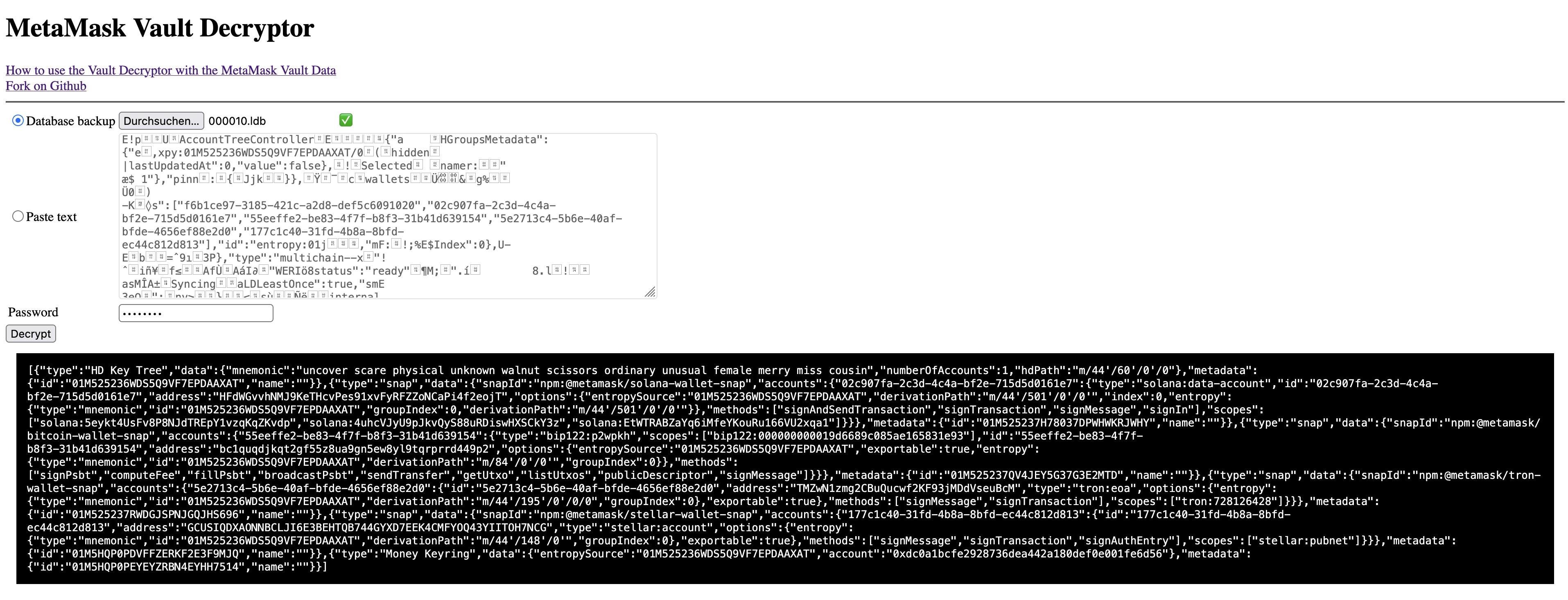
If the tool shows “Incorrect password”, decryption failed, but that doesn’t prove your password is wrong. Damaged, incomplete or incorrectly extracted vault data produces the same message. Check where your vault data came from, whether it is complete and whether it is in the right format, as well as your password.

Can't Remember Your MetaMask Password?
With your MetaMask vault data still available, a recovery may be possible. ReWallet evaluates your case for free and only charges a fee if the recovery succeeds.
Check your recovery optionsMethod 4: Recover Through Your Google, Apple or Telegram Login
Use this if: you created your MetaMask wallet by signing in with Google, Apple or Telegram (available since August 2025).
You need: the same linked account and your MetaMask password. Too many incorrect password attempts can temporarily block the recovery.
To restore your wallet, follow these steps:
- Open MetaMask.
- Choose "I have an existing wallet".
- Select Google, Apple or Telegram, depending on which one you used during your initial setup.
- Log in to your account.
- Enter your MetaMask password.
If you accidentally choose to create a new wallet instead of "I have an existing wallet", MetaMask detects that a wallet already exists for this login and offers to open it. Click "Open wallet" to access your existing wallet. This protects you from creating multiple wallets with the same social account.
Method 5: Recover With an iCloud Backup
Until April 2022, iCloud backups of the MetaMask app could include your password-encrypted vault, as MetaMask confirmed at the time. A later update excluded MetaMask’s files from iCloud backups by default. Users can still opt back in through their iPhone settings.
You can’t import such a backup through MetaMask’s restore options. The vault first has to be extracted from the backup and then decrypted. Mobile vaults use a different format than the browser extension, so MetaMask’s Vault Decryptor from Method 3 can’t read them; you need a decryption method that matches the app version that created the vault.
What this means for you: if you had MetaMask installed on your iPhone before April 2022 with iCloud backups enabled, your iCloud backup may still contain your encrypted MetaMask vault. Together with the matching password, that vault can give you access to your funds again.
MetaMask Recovery on iPhone and Android
Mobile versions differ in terms of recovery. This table helps you decide which steps to take to secure or restore your MetaMask mobile wallet.
| Situation | iPhone | Android |
|---|---|---|
| App still opens with password | No recovery needed. Back up your Secret Recovery Phrase. | Same as iPhone. |
| Only Face ID / fingerprint still works | Back up your Secret Recovery Phrase immediately, before you lose access completely. | Same as iPhone. |
| Created with Google, Apple or Telegram | Restore via Method 4, then back up your Secret Recovery Phrase. | Same as iPhone. |
| App deleted or phone reset | With your recovery phrase: Method 1. Without it: check for device or cloud backups (Method 5). | With your recovery phrase: Method 1. Without it: recovery is unlikely, as current versions exclude MetaMask from Android backups. |
| Phone or cloud backup exists | The backup may contain your encrypted vault. Mobile vaults use a different format than the browser extension, so the official Vault Decryptor can’t read them. They need a decryption method that matches your app version. | Current app versions exclude MetaMask data from Android backups, so a device backup is unlikely to contain your vault. |
Accounts or Funds Missing After Restoring
This is the most common reason people think their funds are gone after a restore. First answer one question: is your original address being displayed?
Your Original Address Is Missing
MetaMask didn't find all your accounts, or you restored a different wallet. Possible causes:
- Automatic account discovery may have missed accounts. In the versions tested for this guide, MetaMask checks accounts for past transaction activity on Ethereum Mainnet, not for their current balance. Accounts that never sent a transaction on Ethereum Mainnet, for example ones only used on Polygon or Arbitrum, may not be restored automatically.
The fix: you can recover missing accounts derived from the same phrase by repeatedly choosing "Add account" / "Create account". This recreates the same addresses in order.
If you had Backup and sync enabled before, it can restore your account list automatically.
- The account was imported separately. Accounts imported with a private key or JSON file never belonged to your recovery phrase. They need their original private key or JSON file.
- It was a hardware wallet account. Ledger and Trezor accounts aren't stored in MetaMask. See "Restore MetaMask With Hardware Wallets" below.
- You restored a different recovery phrase. If you have several phrases, check each one.
Your Original Address Is There, but the Balance Is Missing
Your recovery worked. The assets are probably just not displayed:
- Wrong network: the same address can hold different assets on Ethereum, Polygon, Arbitrum and other networks. Switch networks or add the missing one.
- Token not displayed: import the token manually.
- Check the blockchain directly: look up your address on a block explorer for the right network (for example Etherscan for Ethereum). If the assets show there, they are safe.
Restore MetaMask With Hardware Wallets
MetaMask never stored the private keys of your Ledger or Trezor accounts. To reconfigure your wallet, reconnect the device (or a replacement restored from its recovery phrase), then select the same accounts again.
If you used a passphrase on your hardware wallet: you need exactly the same passphrase. Each passphrase opens a different wallet, and your MetaMask password can't replace it.
Important: don't import your hardware wallet's recovery phrase into MetaMask as a software wallet. It defeats the purpose of the hardware wallet, and with Ledger Live derivation paths, only your first account would show up.
Still Can't Find Your Funds?
Missing accounts, a forgotten vault password or a deleted extension? ReWallet assesses your case for free. Success-based fee only.
Get a free assessmentWhen to Get Professional Help With Your MetaMask Recovery
You can handle most MetaMask recoveries yourself if you have your recovery phrase, or your vault data and password. Professional help is worth considering when key information is missing:
- a forgotten MetaMask password with surviving vault data
- a deleted extension or app without a recovery phrase backup
- an incomplete or partly wrong recovery phrase
- accounts that still don't appear after all the checks above
- a vault from a phone or iCloud backup that the official tool can’t read
- any other issue that prevents you from accessing your MetaMask wallet
When you contact us, describe your problem, your device, what you can still access and which backups exist. Never send your recovery phrase, private keys or passwords.
ReWallet evaluates your case for free. If we take it on, the fee is a share of the recovered funds and only due after a successful recovery. No recovery, no fee!